You don’t always need a computer to convert MPEG files into MP3. This guide walks through mobile friendly methods for both Android and iPhone, helping you extract audio directly from your smartphone.
Can Phones Convert MPEG Video Files Directly to MP3?
Yes, modern smartphones handle this task easily through dedicated converter apps. Both Android and iOS offer capable options, though the exact process differs slightly between the two platforms.
What to Check Before Choosing a Mobile Converter
Look for apps with genuine offline processing, avoiding those requiring constant uploads. Also check reviews for reliability, since some converter app options produce distorted audio quality or hidden subscription costs.
How to Convert MPEG to MP3 on Android
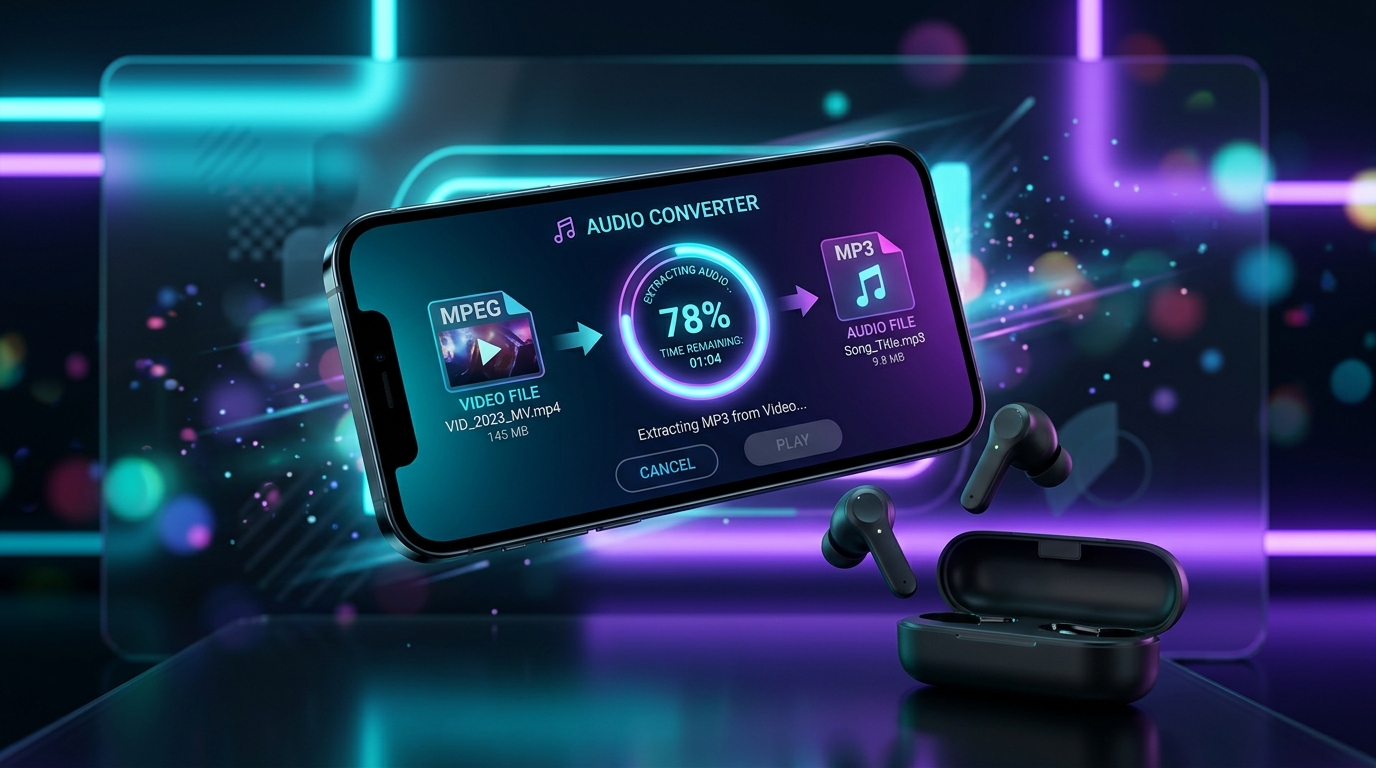
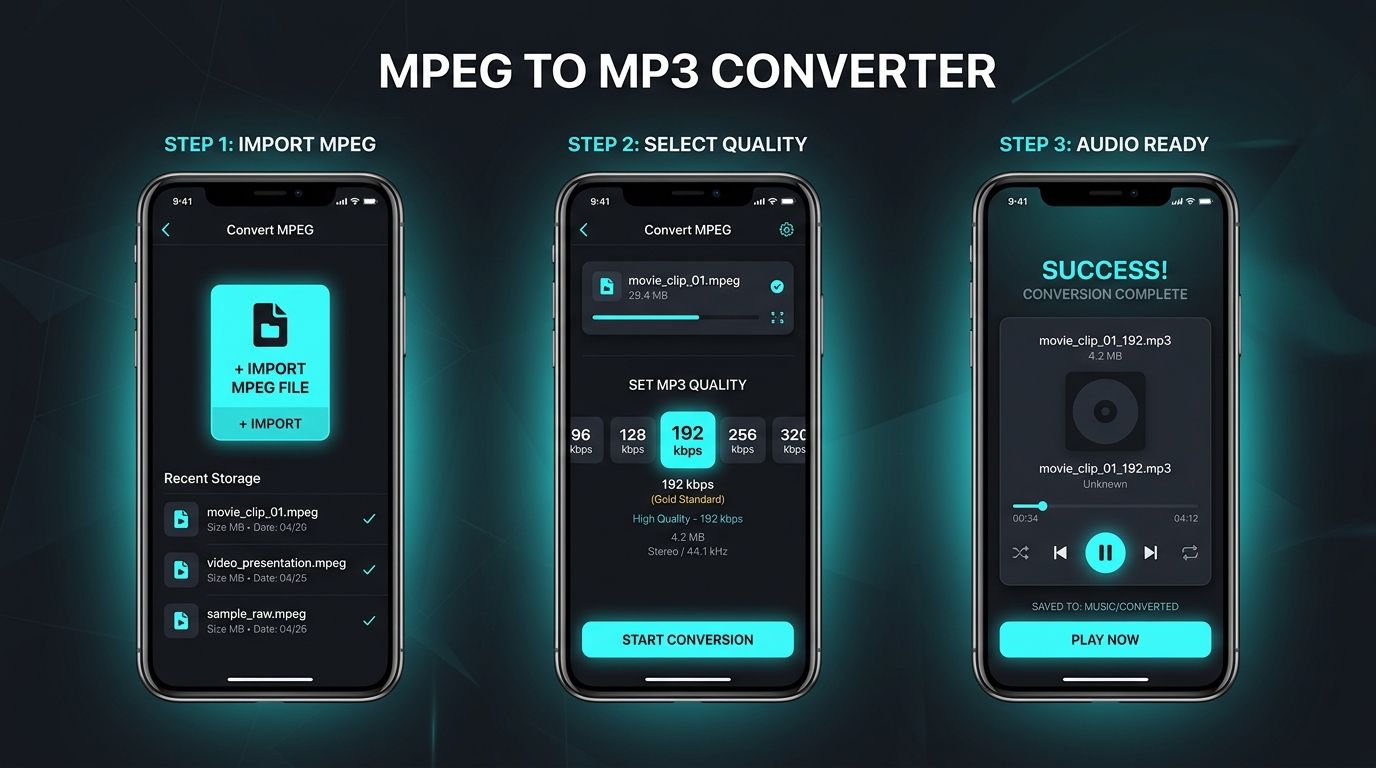
Install a trusted MPEG converter app from the Play Store, import your video file, select MP3 as output, then tap convert. Most apps complete this audio extraction within seconds for typical file lengths.
How iPhone File Handling Differs From Android
iPhone file management works differently, often routing through the Files app or Photos library. Third party converter apps typically require importing your MPEG file first before offering conversion options.
How to Import an MPEG File From Your Phone Storage
On Android, browse your file manager or Downloads folder directly. On iPhone, check the Files app or import from cloud storage if your MPEG file originated elsewhere, like an email attachment.
Choosing Audio Quality and File Size on Mobile
Most mobile apps offer simplified bitrate presets rather than granular control. Choosing “Standard” or “High Quality” usually balances audio quality against storage limitations reasonably well for everyday mobile use.
| Setting | Typical Bitrate | Best For |
|---|---|---|
| Low | 96 to 128 kbps | Voice notes |
| Standard | 192 kbps | General use |
| High | 256 to 320 kbps | Music |
Where Converted MP3 Files Are Usually Saved
Android apps typically save to a Music or Downloads folder automatically. iPhone apps usually store results within the app itself or the Files app, depending on how the specific converter handles export.
How to Transfer MPEG Files From a Computer to a Phone
Use a USB cable, cloud storage, or wireless transfer apps to move MPEG files from your desktop onto your phone before converting, especially useful for larger camcorder recordings.
What to Do When a Mobile Converter Cannot Read the MPEG
If an app rejects your file, try a different converter, since compatibility varies between apps. Alternatively, convert on a computer using FFmpeg or VLC first, then transfer the finished MP3 to your phone.
Conclusion: A Simple Mobile Workflow for MPEG to MP3 Conversion
Converting MPEG to MP3 on mobile has never been easier. Pick a trustworthy converter app, import your file, choose sensible quality settings, and you’ll have portable audio ready in moments, no computer required.