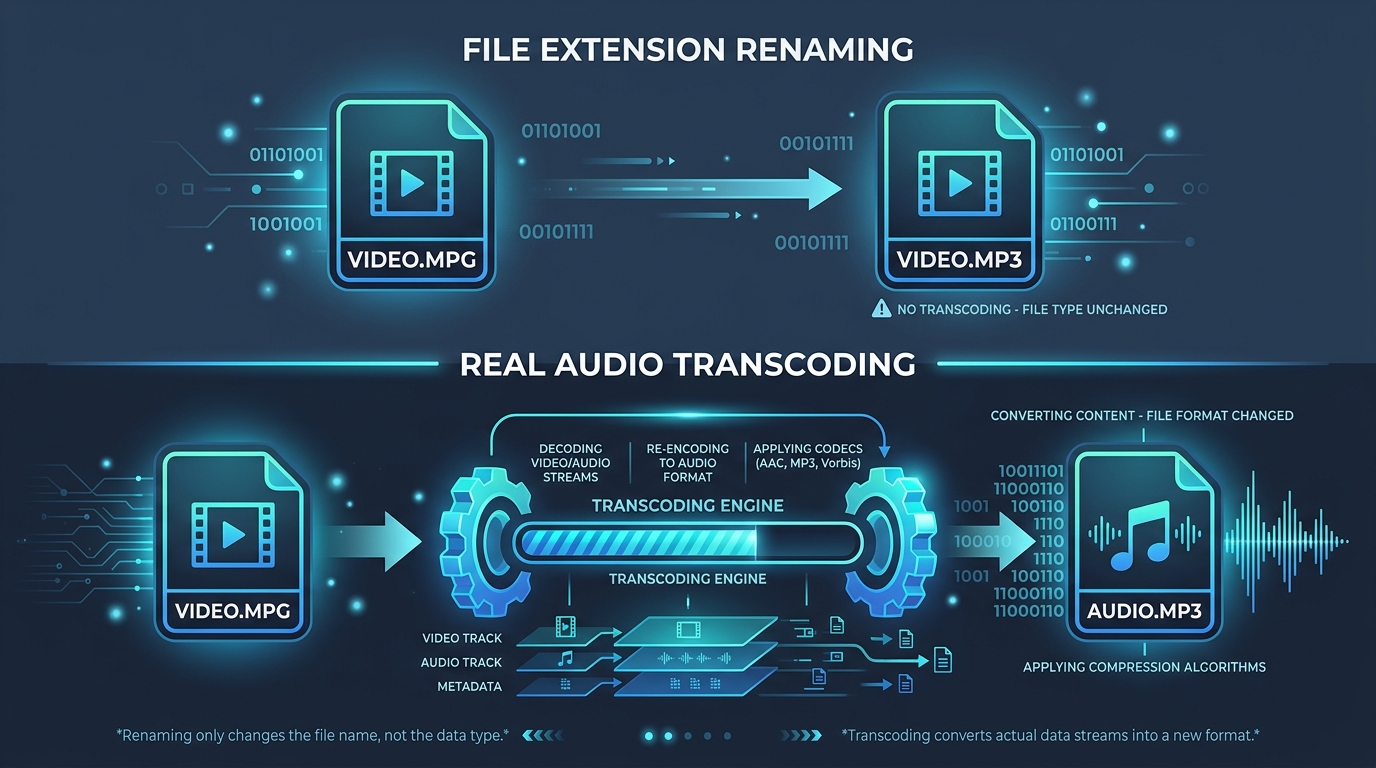
That old .mpg file sitting in your archive could be one of several different formats underneath. This guide explains MPEG 1, MPEG 2, and how to properly identify exactly what you’re dealing with before attempting any conversion.
What Is MPEG 1 and Where Was It Commonly Used?
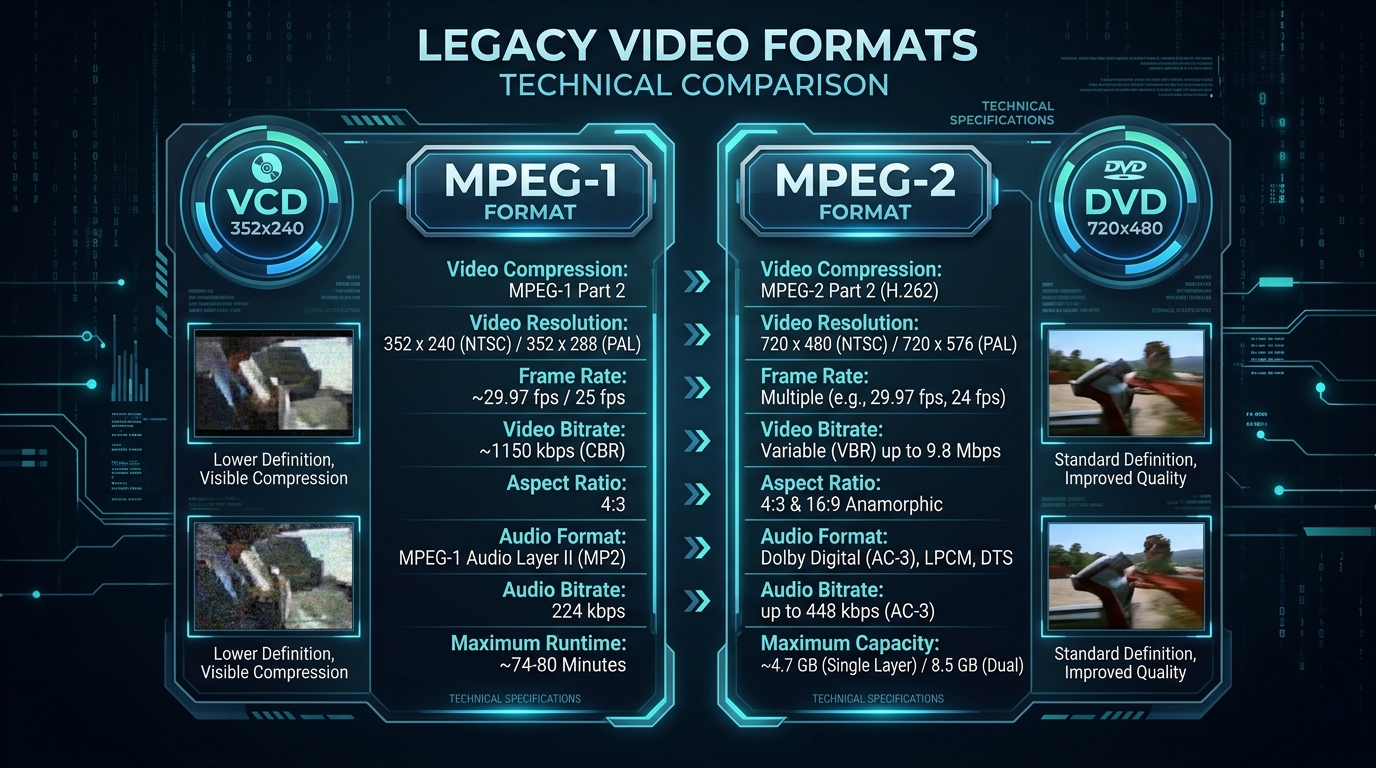
MPEG 1 emerged in the early 1990s, primarily powering Video CDs and early digital video experiments. It offers lower resolution and bitrate compared to later standards, reflecting the hardware limitations of its era.
What Is MPEG 2 and How Does It Differ From MPEG 1?
MPEG 2 improved significantly on its predecessor, becoming the backbone of DVD video and digital broadcast television. It supports higher resolution, better bitrate efficiency, and superior audio quality compared to older MPEG 1 files.
Why .mpg Does Not Always Tell You the Exact MPEG Version
Frustratingly, the .mpg extension doesn’t specify which MPEG version created the file. Both MPEG 1 and MPEG 2 commonly share this same filename extension, requiring deeper inspection to determine the actual format.
How Resolution and Bitrate Can Help Identify Older Video
Lower resolution, typically around 352x240, often signals MPEG 1 origins. Higher resolution approaching standard DVD quality usually points toward MPEG 2. Checking these properties offers a quick, practical identification shortcut.
| Property | MPEG 1 Typical | MPEG 2 Typical |
|---|---|---|
| Resolution | 352x240 | 720x480 or higher |
| Common Source | VCD | DVD, broadcast TV |
| Audio Format | MPEG 1 Layer II | MP2 or AC3 |
Which Audio Formats Can Exist Inside MPEG 1 and MPEG 2 Files?
MPEG 1 typically embeds MPEG 1 Layer II audio, an ancestor of modern MP3. MPEG 2 files often carry MP2 audio or sometimes Dolby AC3, offering richer sound compared to the earlier standard.
How MediaInfo Can Reveal the Actual Video and Audio Streams
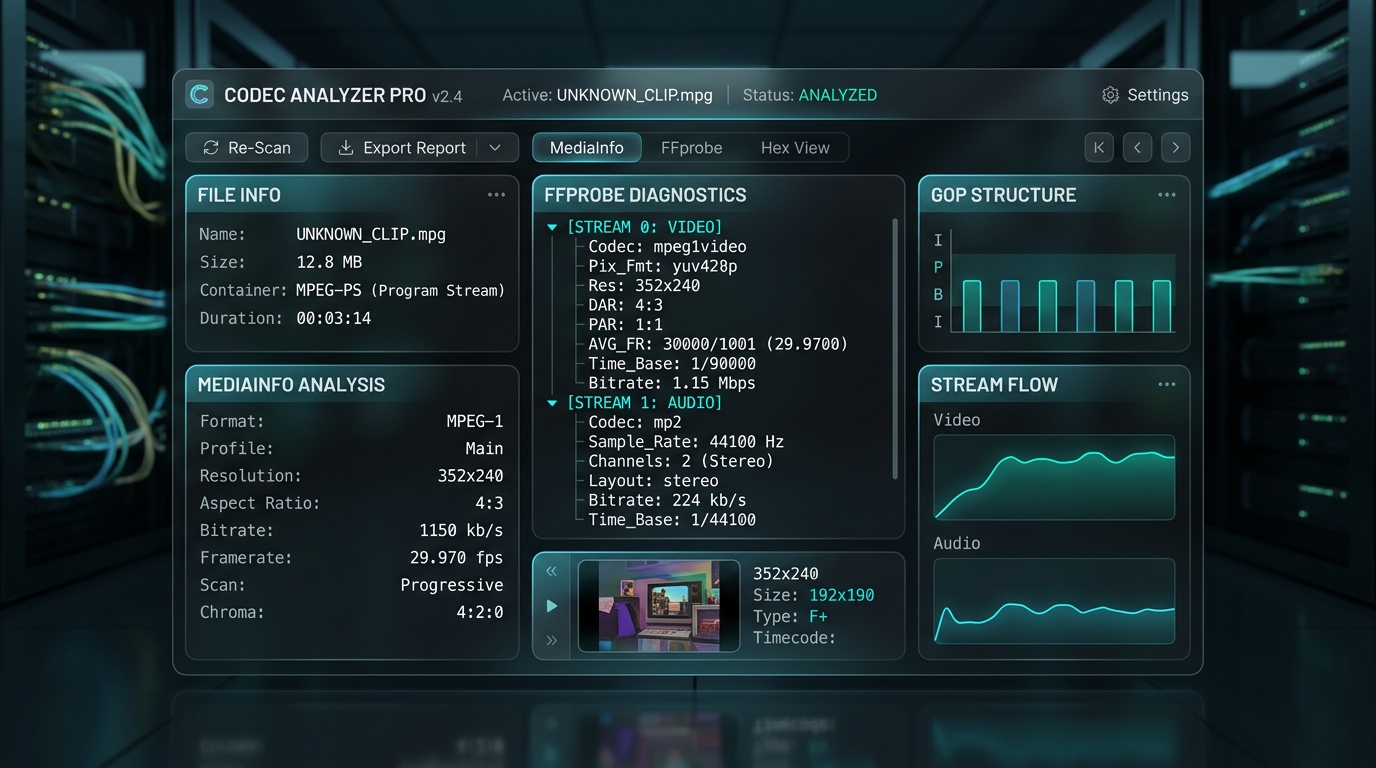
Running your mystery file through MediaInfo instantly reveals its true codec, resolution, and audio stream details. This free tool removes all guesswork from MPEG format detection within seconds.
How VLC and FFmpeg Help Inspect an Unknown MPEG File
VLC’s Codec Information window and FFmpeg’s ffprobe command both display detailed technical properties. Either tool quickly confirms whether you’re handling MPEG 1 or MPEG 2 content before proceeding further.
Why Older MPEG Files May Behave Differently During Conversion
Legacy video formats sometimes trigger unexpected codec compatibility issues in modern software. Older MPEG 1 files particularly may need specific decoder libraries that newer tools don’t always include by default.
How to Identify the Right Conversion Settings for Legacy MPEG Video
Match your conversion approach to the identified version. MPEG 1 files generally need less aggressive bitrate settings during MP3 extraction, since their original audio quality was already fairly modest to begin with.
Conclusion: Identifying Your MPEG File Before Converting It
Never assume every .mpg file is identical underneath. Take a moment to inspect resolution, codec, and audio stream details using MediaInfo or FFmpeg first. This small step ensures smoother, more predictable MPEG to MP3 conversion every time.