Ever tried to fix a broken video by just swapping its file extension? You’re not alone. Many people wonder, can you rename MPEG to MP3 and expect it to magically play as clean audio. Spoiler: it doesn’t work that way. This guide breaks down does renaming MPEG to MP3 work, why it fails, and what actually converts your file properly.
What Does a File Extension Actually Tell Your Computer?
A file extension is just a label. It tells your operating system which software should open the file. Windows, Mac, and Linux all rely on this tiny tag to pick the right media player or app. But the extension itself holds zero actual data.
Think of it like a mailing label on a box. The label says “books,” but if someone stuffed shoes inside, changing the label won’t turn shoes into books. That’s exactly how file extensions work with your digital media files. The real content stays untouched.
Why Renaming .mpg or .mpeg to .mp3 Usually Fails
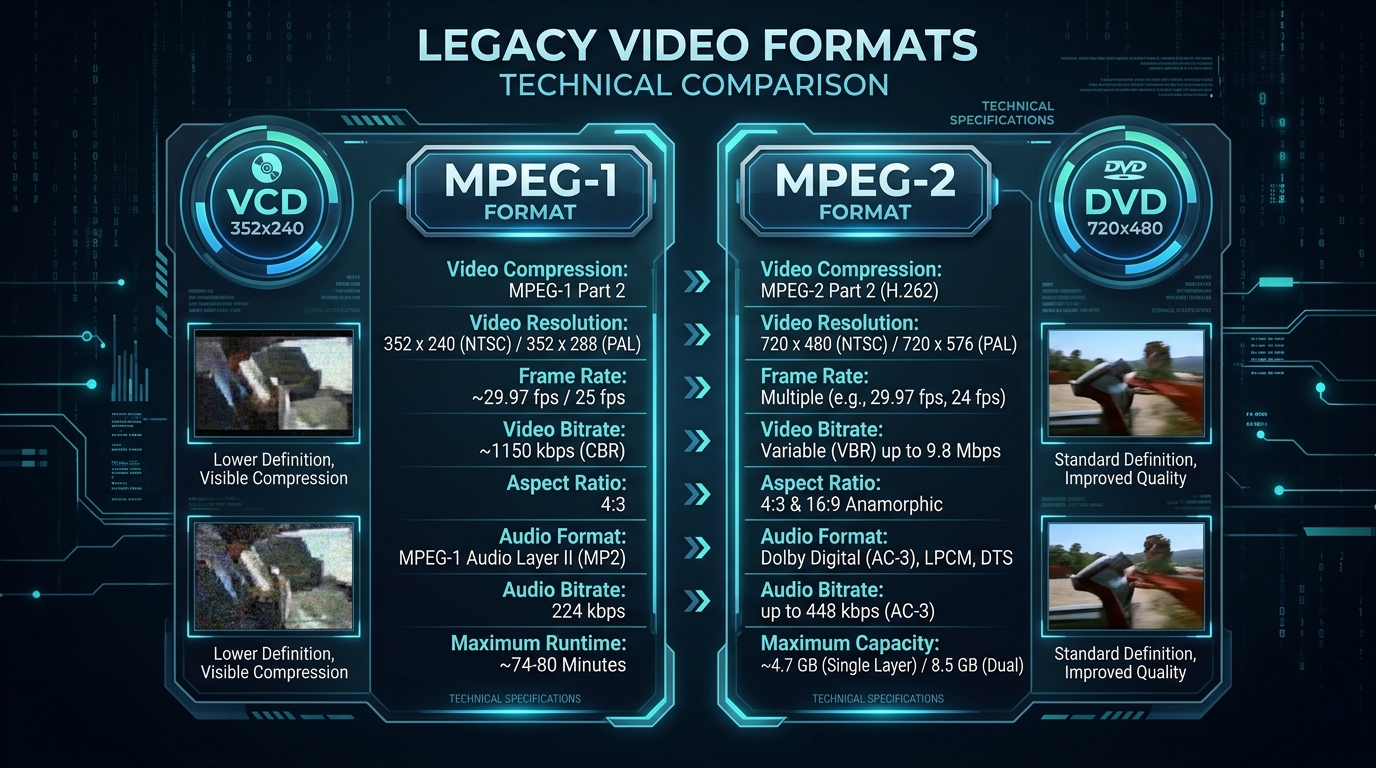
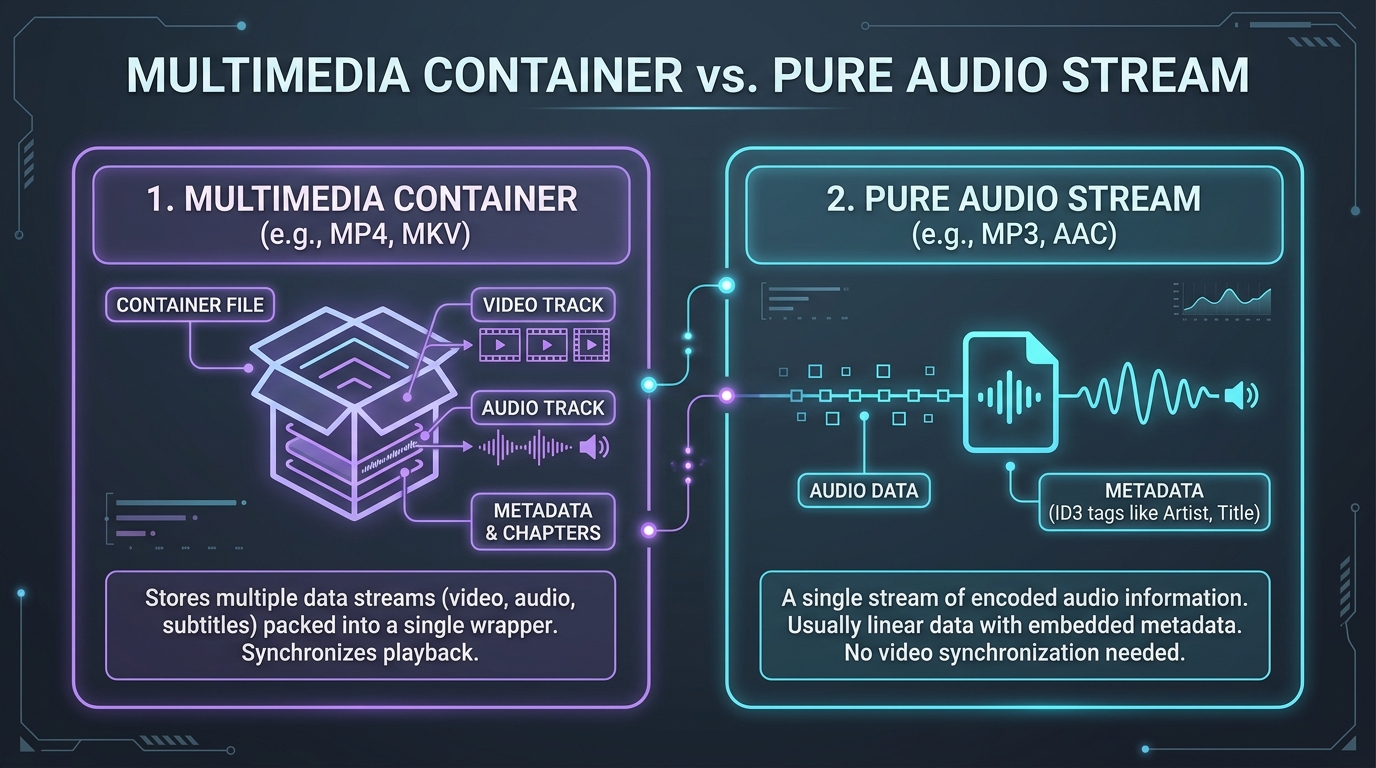
So, can I change mpg to mp3 just by typing a new name? Technically yes, but functionally no. The MPEG file extension and the MP3 file extension represent two completely different file types. One’s a container, the other’s a pure audio format.
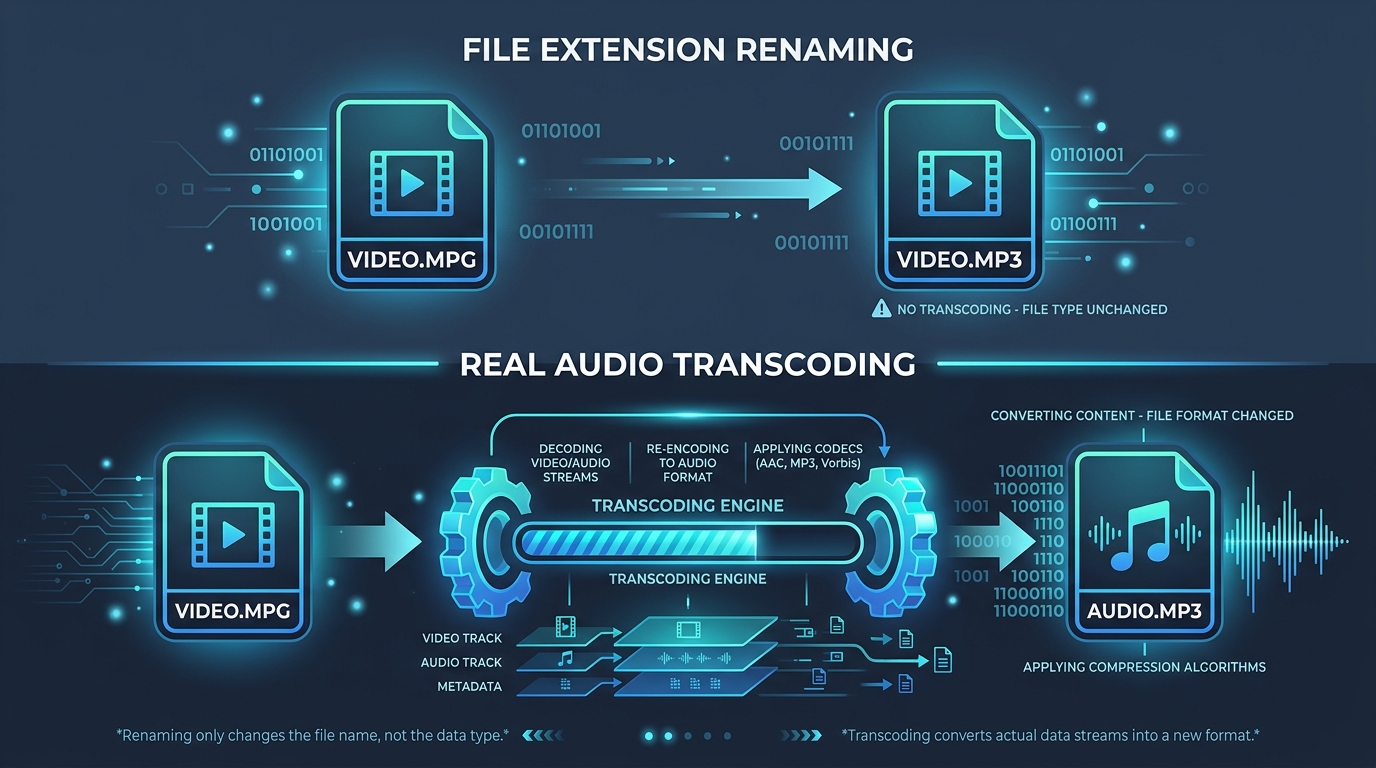
When you rename MPG as MP3, the internal binary file structure stays exactly the same. Your media player still sees raw MPEG video file data underneath, even though the filename extension now says otherwise. This mismatch is why MPEG renamed to MP3 not working is such a common complaint online.
How MPEG Video and MP3 Audio Store Different Types of Data
An MPG format file usually bundles both a video stream and an audio stream together inside one multimedia container. MP3, on the other hand, only holds compressed audio, no video track at all.
| Format | Contains | Typical Use |
|---|---|---|
| MPEG/MPG | Video stream + audio stream | Movies, recordings |
| MP3 | Audio stream only | Music, podcasts |
This structural gap explains the MPEG MP3 extension difference clearly. You can’t force one structure into another by editing three letters at the end of a filename.
What Happens When You Open a Renamed MPEG File?
Curious about will MPEG become MP3 by renaming? Try it, and here’s what usually happens. Your media player either refuses to open the file, throws an error, or plays garbled noise. That’s because the app expects MP3 codec data but finds MPEG codec data instead.
Some players, like VLC, are smarter. They check the actual file format recognition signature inside the file rather than trusting the file extension alone. Others, especially older or stricter apps, take the extension at face value and simply crash. This inconsistency is exactly why renamed MP3 will not play on certain devices, including some iPhone and Android apps.
How to Check Whether an MPEG File Contains an Audio Stream
Before attempting MPEG to MP3 file conversion, check what’s actually inside your source file. Free tools make this easy and quick.
FFmpeg is the gold standard here. Run a simple command like ffprobe yourfile.mpg and it lists every audio stream and video stream present, along with bitrate, sample rate, and channel details. VLC also shows this info under its Codec Information menu, no command line needed.
Knowing your streams first saves time. There’s no point trying extract audio from MPEG if no audio track even exists in that particular recording.
Why File Extensions Should Match the Actual File Format
Mismatched extensions cause compatibility headaches down the road. Uploading a wrongly labeled file to a website, sharing it via email, or importing it into editing software can trigger confusing errors. Keeping your file type honest saves everyone a headache later.
How Media Players Handle Incorrect MPEG and MP3 Extensions
Media player compatibility varies a lot depending on the platform. Windows Media Player often trusts the file association blindly. Mac’s QuickTime is a bit more forgiving, reading file headers directly. Linux users typically rely on FFmpeg based tools, which almost always check real content over labels.
This is the technical explanation behind why MP3 player cannot open MPEG content dressed up in an MP3 costume. The decoding engine inside the app looks for MP3 specific patterns and simply doesn’t find them, leading to silence, static, or outright rejection.
When Renaming a File Extension Is Safe and When It Is Not
Not all renaming is dangerous. Sometimes the underlying encoding genuinely matches, and only the label was wrong to begin with.
| Situation | Safe to Rename? |
|---|---|
| .jpeg to .jpg | Yes, same format |
| .mpg to .mpeg | Yes, same container |
| .mpg to .mp3 | No, different codec entirely |
| .wav to .mp3 | No, requires real transcoding |
This table sums up MPEG extension change explained in plain terms. If the compression method differs, renaming alone will never fix it.
How to Convert the Audio Stream Instead of Simply Renaming the File
Here’s how to convert MPEG properly. Instead of touching the filename, use a real MPEG converter or MP3 converter tool. FFmpeg remains the most reliable option across desktop systems.
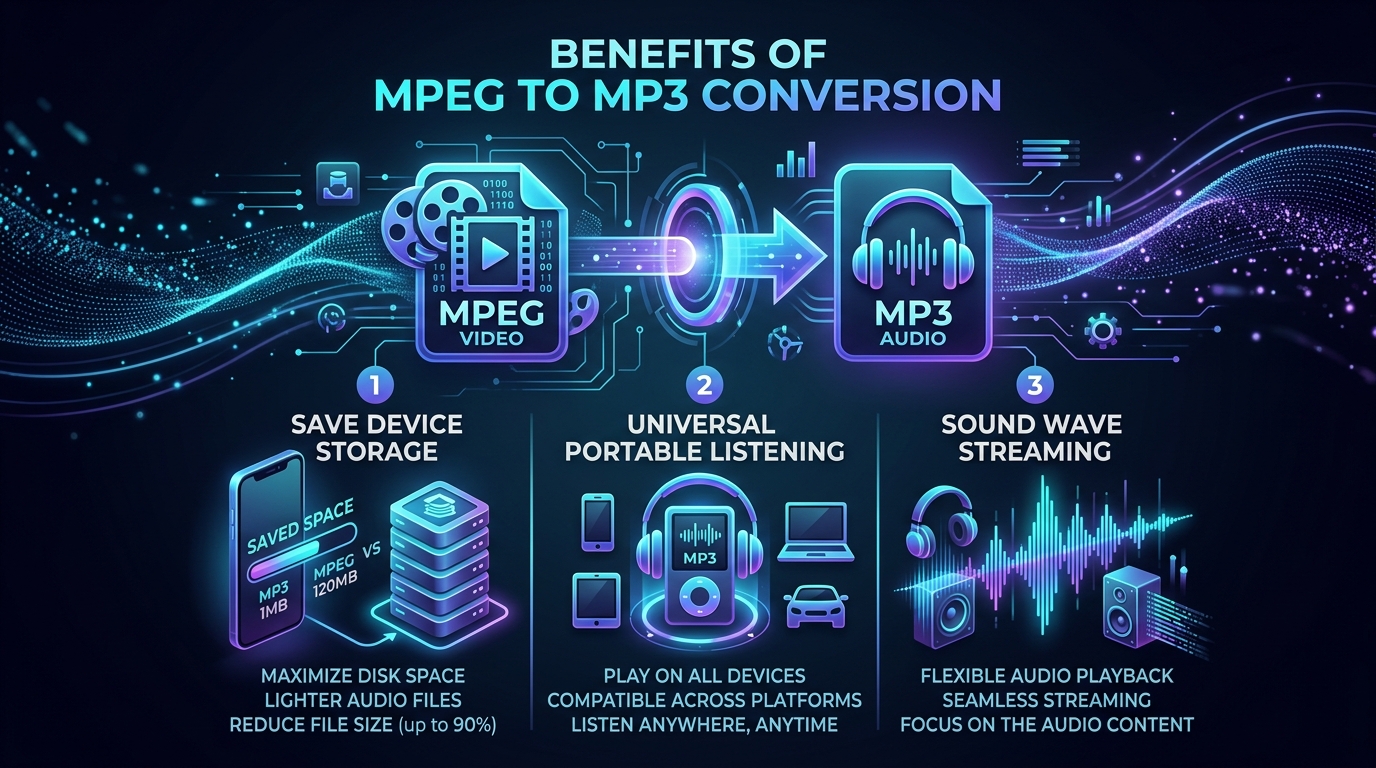
A basic command looks like this: ffmpeg -i input.mpg -q:a 0 -map a output.mp3. This tells the encoder to grab only the audio portion and run proper audio conversion, producing a genuine, playable MP3 file. Many free online converter websites offer the same export feature without needing any command line knowledge at all, perfect for casual users who just want quick results.
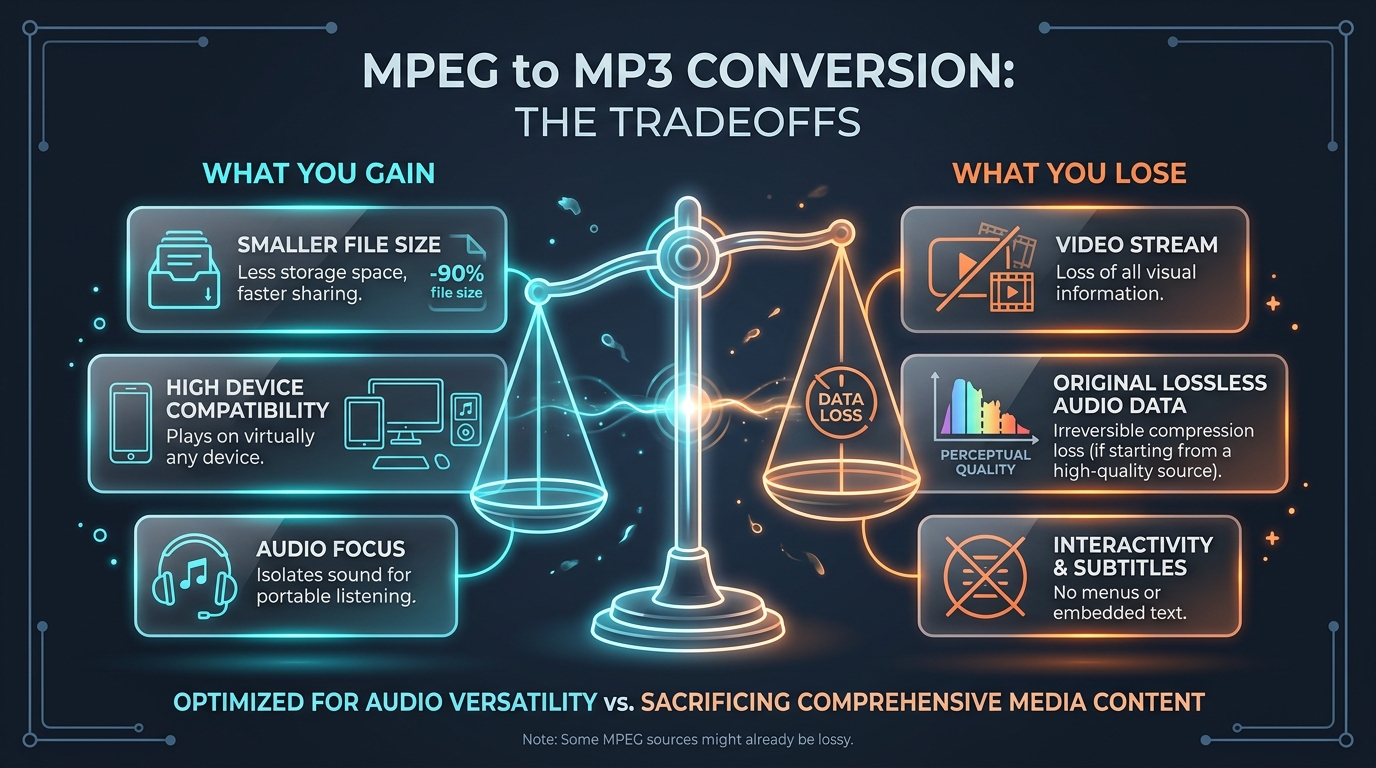
This is the real actual MPEG conversion method, not a fake shortcut. It involves decoding the original MPEG codec, then encoding fresh audio data using lossy compression into the MP3 structure, complete with proper ID3 tags for song title and artist metadata.
Conclusion: Renaming Is Not the Same as MPEG to MP3 Conversion
To wrap up the difference between renaming and converting: a filename extension is cosmetic. Real file extension conversion happens through transcoding software like FFmpeg or VLC, not a quick rename. If you want a working, playable audio track, always convert MPEG audio to MP3 the proper way instead of just editing the label. Your ears, and your media player, will thank you.