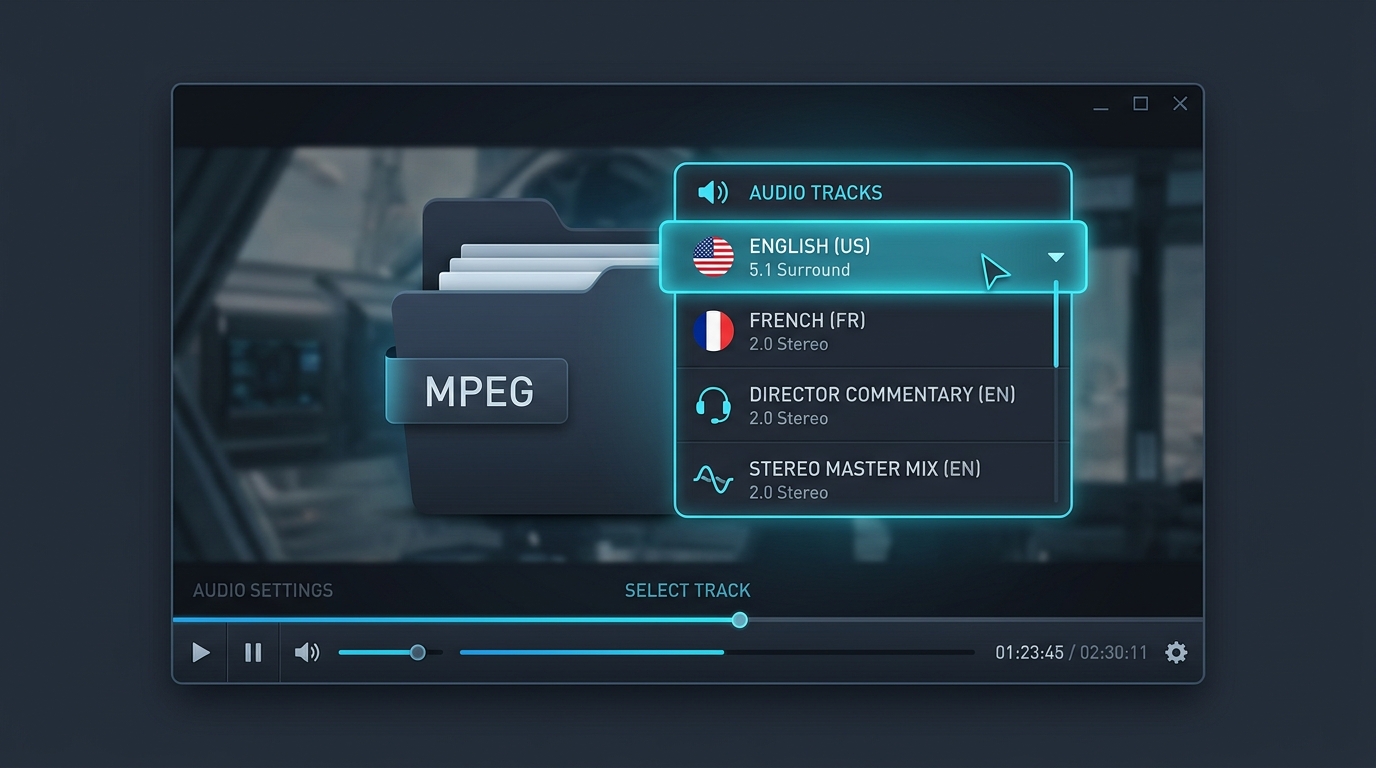
Many MPEG files secretly contain more than one audio track, and picking the wrong one leads to frustrating results. This guide shows exactly how to identify, preview, and select the correct audio stream before running any conversion.
Why Some MPEG Files Contain Multiple Audio Tracks
International films, TV broadcasts, and professional recordings frequently embed several audio tracks within a single MPEG container. These might include different languages, commentary tracks, or separate stereo and surround mixes.
This flexibility helps distributors serve global audiences from one file. However, it complicates simple extraction tasks, since choosing the wrong audio stream produces unexpected or unwanted results during conversion.
How to Identify Available Audio Streams
Before converting anything, inspect your file first. Tools like MediaInfo and VLC reveal exactly how many audio streams exist, along with language tags, channel configuration, and codec details for each one.
Skipping this step risks extracting the wrong content entirely. A quick inspection takes seconds and saves considerable frustration later during your actual MPEG converter workflow.
How Language Selection Works in Multi Track Videos
Each audio track usually carries a language code, like “eng” or “fra.” Media player software reads these tags to populate selectable menus, letting you choose your preferred language before extracting or converting anything.
Choosing Stereo, Mono, Commentary, or Alternative Tracks
Beyond language, tracks may differ by content type entirely. A stereo track might carry the main mix, while a mono track or commentary track offers director notes or alternate narration for the same footage.
| Track Type | Typical Content |
|---|---|
| Primary Stereo | Main dialogue and music |
| Commentary | Director or cast narration |
| Alternate Language | Dubbed dialogue |
| Mono Backup | Older or simplified mix |
How VLC Displays MPEG Audio Streams
Open your file in VLC, then check the Audio menu at the top. Every available audio stream appears listed there, letting you switch between them instantly during playback to preview each option before deciding.
This preview step confirms exactly which track contains what you actually want, preventing wasted time converting the wrong audio stream entirely by mistake.
Selecting an Audio Stream With FFmpeg
FFmpeg offers precise control through its map command. Running something like ffmpeg -i input.mpg -map 0:a:1 output.mp3 selects the second audio stream specifically, rather than defaulting to whatever track appears first.
This stream mapping approach proves essential for files with multiple languages or commentary tracks, ensuring your MP3 extraction captures exactly the content you intended from the start.

What Happens When the Wrong Track Is Extracted
Extracting the incorrect stream wastes time and produces unusable results. Imagine converting an entire lecture only to discover you grabbed the commentary track instead of the main audio stream, frustrating and entirely avoidable with proper inspection.
How to Verify the Selected Track Before Conversion
Always preview before committing. Play a short clip using your chosen audio stream selection to confirm it matches expectations, catching mistakes early rather than after a lengthy MPEG audio converter process finishes.
How Track Selection Differs From Audio Format Conversion
Selecting a track determines which content gets extracted. Format conversion determines how that content gets encoded afterward. These are separate steps, and confusing them often leads to overlooked audio stream selection errors.
Conclusion: Picking the Right Audio Stream Before Creating MP3
Multi track MPEG files demand a little extra care. Inspect available streams first, preview your selection, then proceed with conversion confidently. This simple habit ensures your final MP3 always contains exactly the audio track you actually wanted.