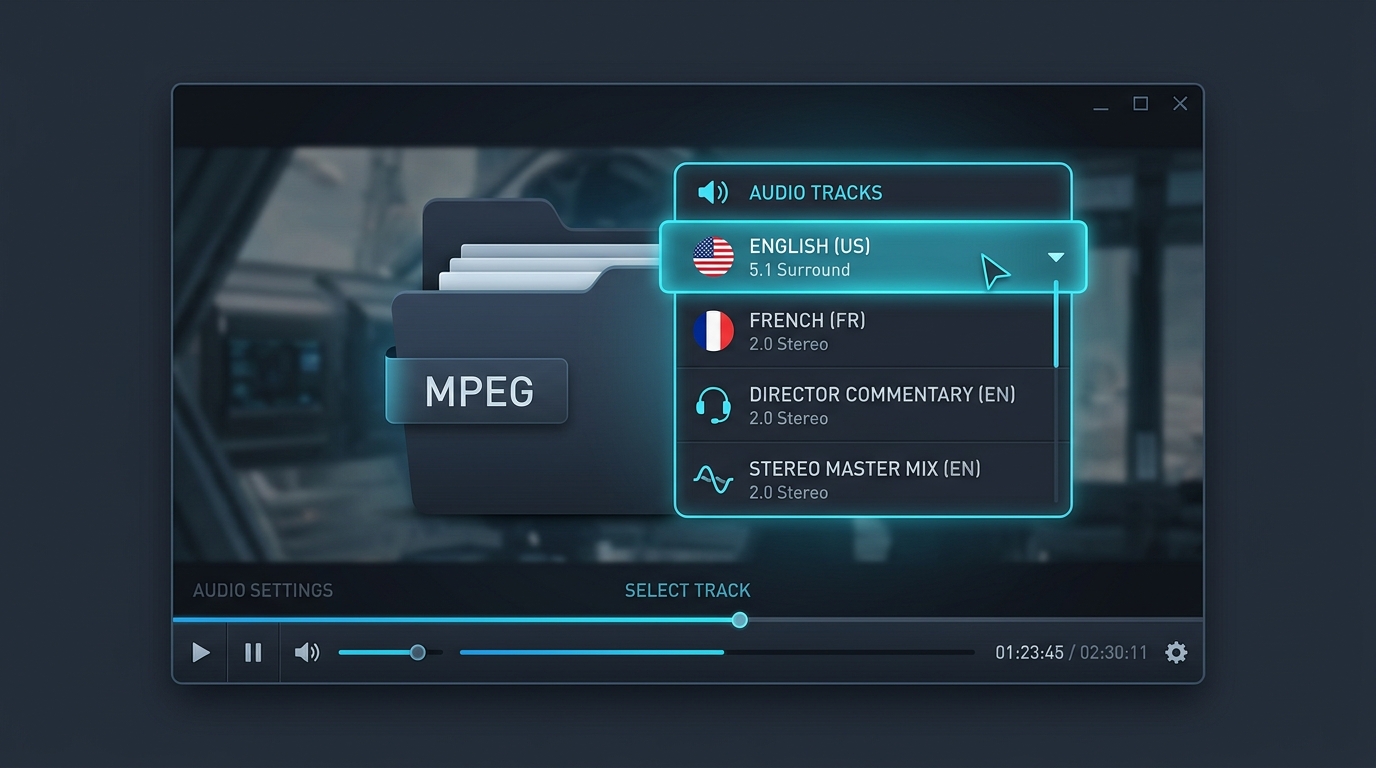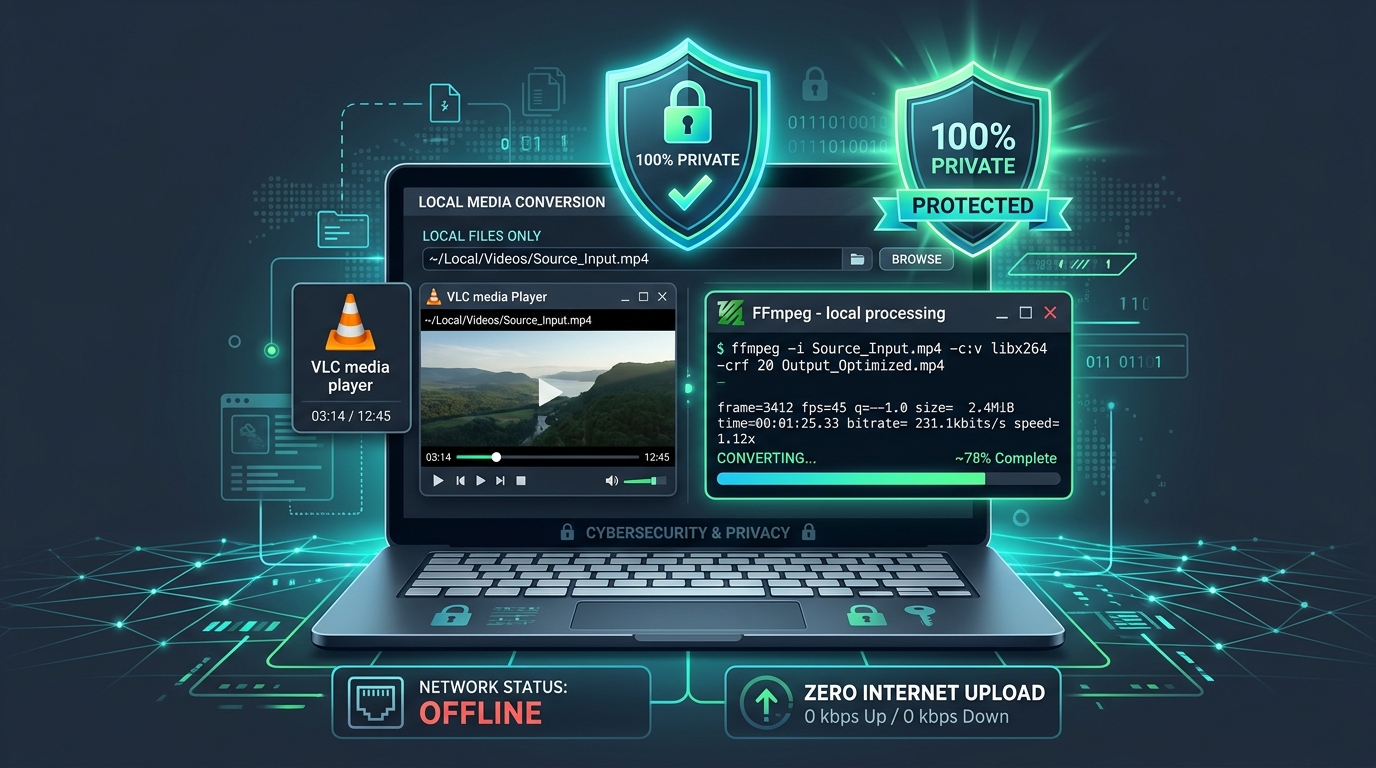
Not everyone wants to upload personal videos to random websites just to grab the audio. This guide covers reliable offline tools, specifically VLC and FFmpeg, that handle MPEG to MP3 conversion entirely on your own desktop.
Why Offline MPEG to MP3 Conversion Can Be Useful
Privacy tops the list of reasons. Keeping sensitive recordings, family videos, or business content on your own machine avoids exposing files to unknown third party servers during online conversion services.
Speed matters too. Local processing skips upload and download wait times entirely, especially valuable for large files or slow internet connections where offline tools clearly outperform web based alternatives.
How to Convert MPEG to MP3 With VLC Media Player
VLC doubles as a capable converter, not just a player. Open the Media menu, select Convert/Save, choose your MPEG file, then pick MP3 as your output profile before hitting Start.
This graphical approach suits beginners perfectly. No command line knowledge required, just simple menu clicks to complete reliable local audio conversion directly on Windows, Mac, or Linux systems.
How FFmpeg Handles MPEG Audio Extraction
FFmpeg works through terminal commands instead of menus. A single line like ffmpeg -i video.mpg -vn -acodec libmp3lame output.mp3 strips video and exports clean audio in one efficient step.
VLC vs FFmpeg for Simple Audio Conversion
| Feature | VLC | FFmpeg |
|---|---|---|
| Interface | Graphical | Command line |
| Beginner Friendly | Yes | Moderate |
| Batch Processing | Limited | Excellent |
| Customization | Basic | Extensive |
Choose VLC for occasional single file jobs. Choose FFmpeg for batch conversion or advanced settings control across many files simultaneously.
How Offline Conversion Keeps Media on Your Computer
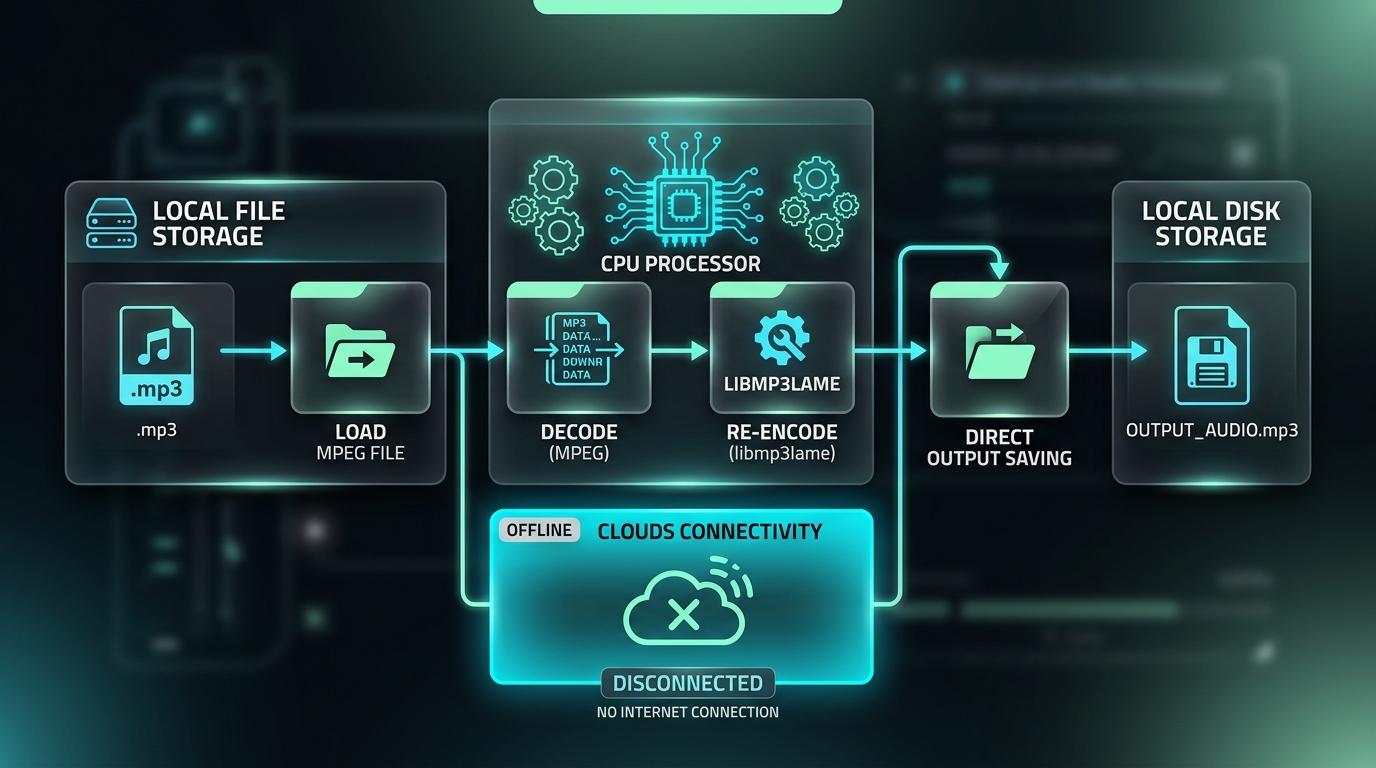
Offline tools process everything locally, meaning your source file never leaves your device. This matters enormously for anyone handling confidential recordings, unreleased music, or private family footage requiring genuine file security.
Choosing MP3 Codec and Bitrate Settings
Both tools let you specify bitrate and codec options directly. FFmpeg uses the reliable libmp3lame encoder by default, while VLC offers preset profiles ranging from low quality to high fidelity MP3 conversion settings.
How to Convert Multiple MPEG Files Locally
FFmpeg shines for batch conversion through simple scripting. A loop command processes an entire folder automatically, converting dozens of MPEG files into MP3 without manual repetition for each individual file.
Common FFmpeg and VLC Conversion Errors
Missing codec libraries, incorrect file paths, or unsupported source formats cause most errors. Double checking your command line syntax or verifying VLC’s codec settings usually resolves these hiccups quickly.
| Common Error | Likely Cause |
|---|---|
| "Codec not found" | Missing MP3 encoder library |
| "No such file" | Incorrect file path |
| Silent output | Wrong audio stream selected |
How to Verify the Output Without Uploading the Source File
Simply play your new MP3 locally using any media player. There’s no need to upload anywhere for verification, keeping your entire offline workflow genuinely private from start to finish.
Conclusion: Choosing an Offline MPEG to MP3 Workflow
Whether you prefer VLC’s simplicity or FFmpeg’s power, both deliver reliable offline conversion without compromising privacy. For anyone serious about local audio conversion, these free tools remain the gold standard across every major operating system.